← All products
Garment production management for Windows

StitchFlow — every order, from buyer PO to dispatch

Plan your orders, issue job cards, record every stage on the production floor, check quality, pack and dispatch — all in one place, on your factory's own PCs. Always know what is done, what is pending and what is late.
  • 60 daysfree trial
  • 11ready reports
  • 1 or morefactories
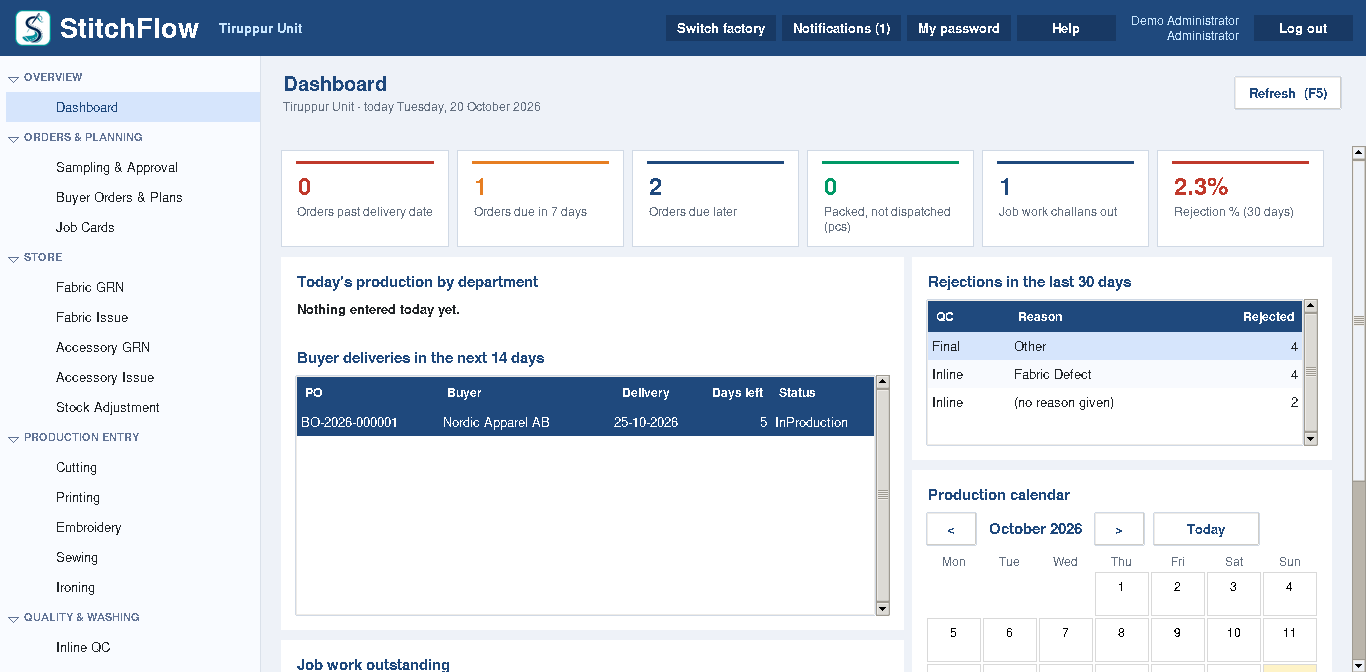
StitchFlow dashboard with orders past and near their delivery date, today's production, rejections and the production calendar

Made for the way a garment factory works

No more chasing registers and spreadsheets to find out where an order stands.

  • One record for every orderThe buyer PO, plan, job cards, fabric, production, quality and dispatch — linked together.
  • Quantities that add upNo stage can record more pieces than the stage before it gave, so the numbers always match.
  • Clear approvalsPlans, job cards and dispatches are approved before work moves on.
  • Mistakes corrected, not hiddenSaved production, stores and dispatch entries are never edited; a correction request with approval keeps the history clear.
  • Every section on the networkStores, cutting, sewing, QC and packing can enter their own work on their own PCs.
  • Your data stays in the factoryOne database on your main PC, on your factory network — no cloud account needed.

Everything from the order desk to the loading bay

Each department sees its own screens; management sees the whole picture.

Orders & planning

  • Samples and their approval
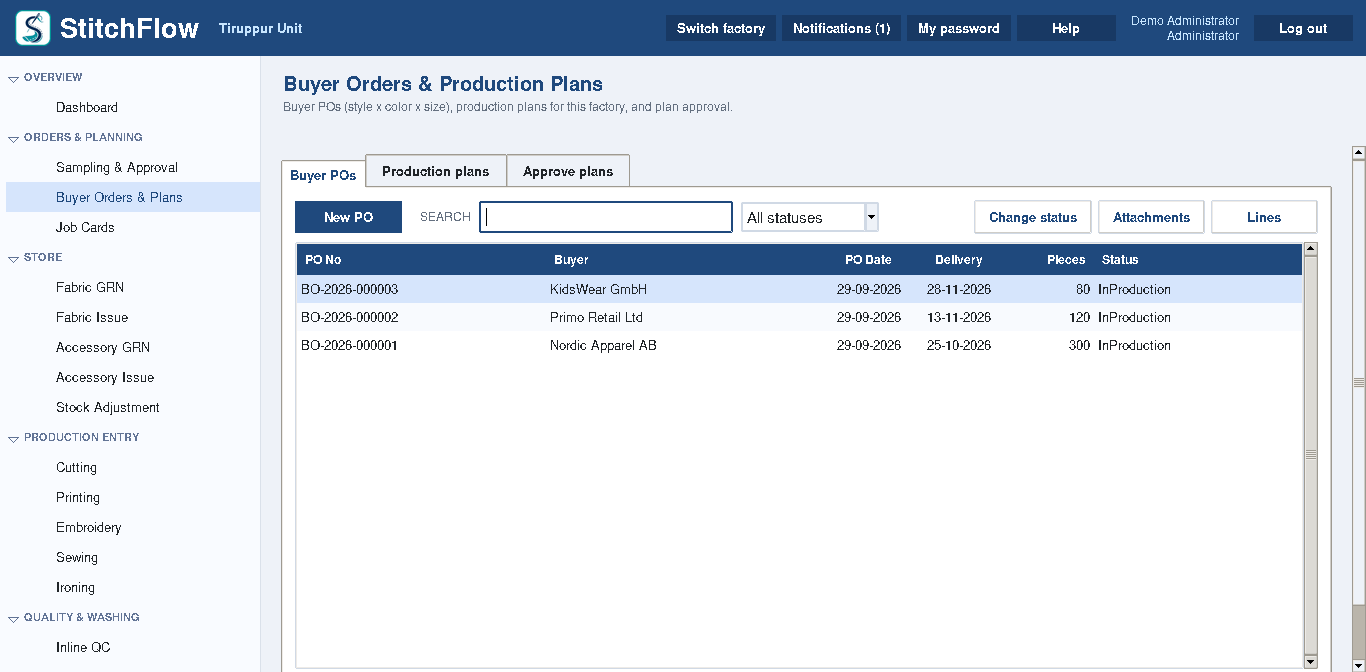
  • Buyer purchase orders by style, colour and size
  • Production plans with approval
  • Job cards that carry the work through the floor
  • Styles with bill of materials and norms

Fabric & accessory stores

  • Fabric received (GRN) with an incoming quality check
  • Accessories received
  • Fabric and accessories issued to job cards
  • Stock adjustments with a reason and approval
  • Gate register for vehicles coming in and going out

Production floor

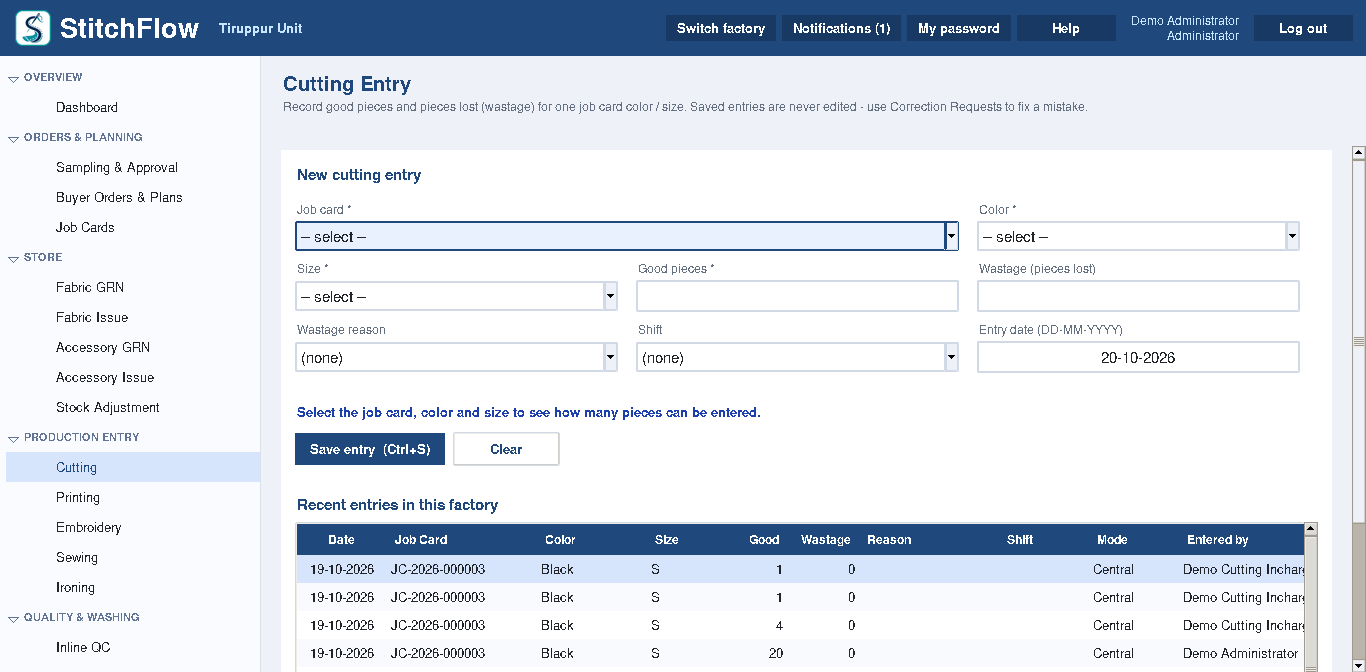
  • Cutting, printing, embroidery, sewing and ironing entries
  • Each factory sets its own order of departments
  • Job work out and in with challans, for work done outside
  • Machines and machine downtime
  • Shift-wise entries, with wastage and its reason

Quality control

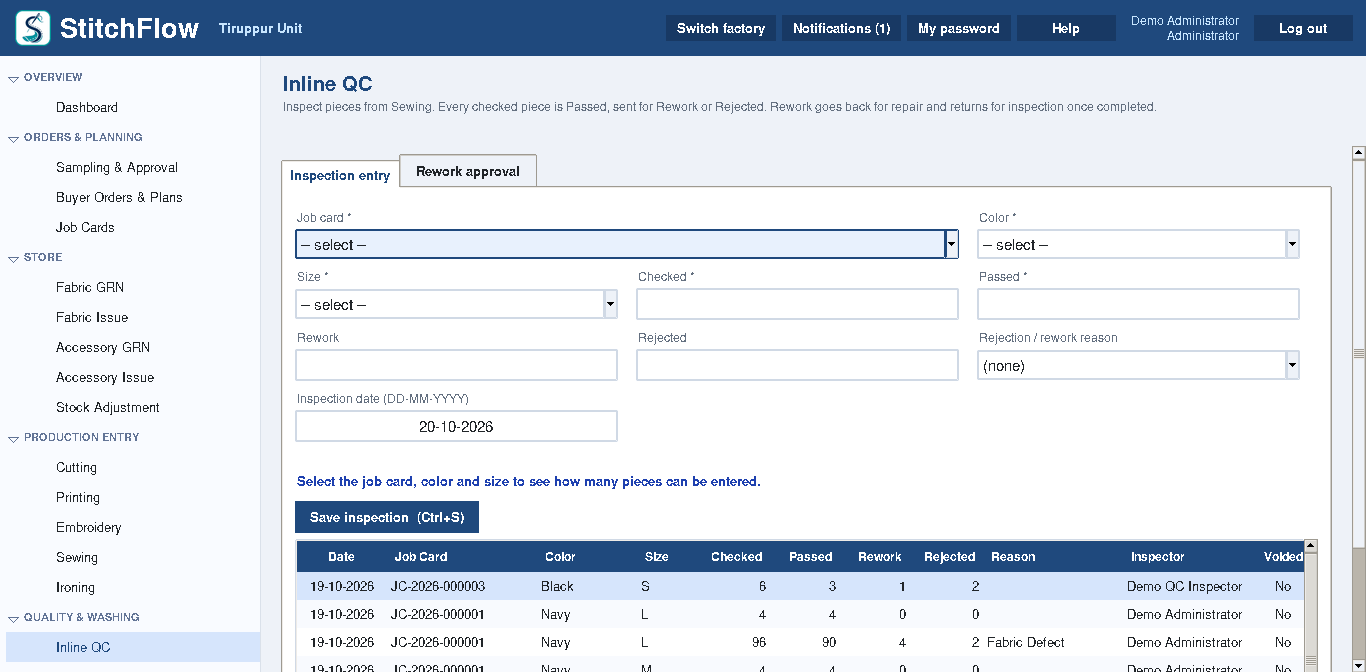
  • Inline quality checks during production
  • Pieces needing rework are approved, repaired and checked again
  • Washing with wash recipes
  • Final quality check before packing
  • Rejection and rework report by reason

Packing & dispatch

  • Packing into cartons, with printed carton labels
  • Dispatch with approval
  • Delivery recorded against each dispatch
  • Dispatch report and order summary by buyer and style

Dashboard & reports

  • Dashboard: orders due and overdue, rejection rate, production calendar
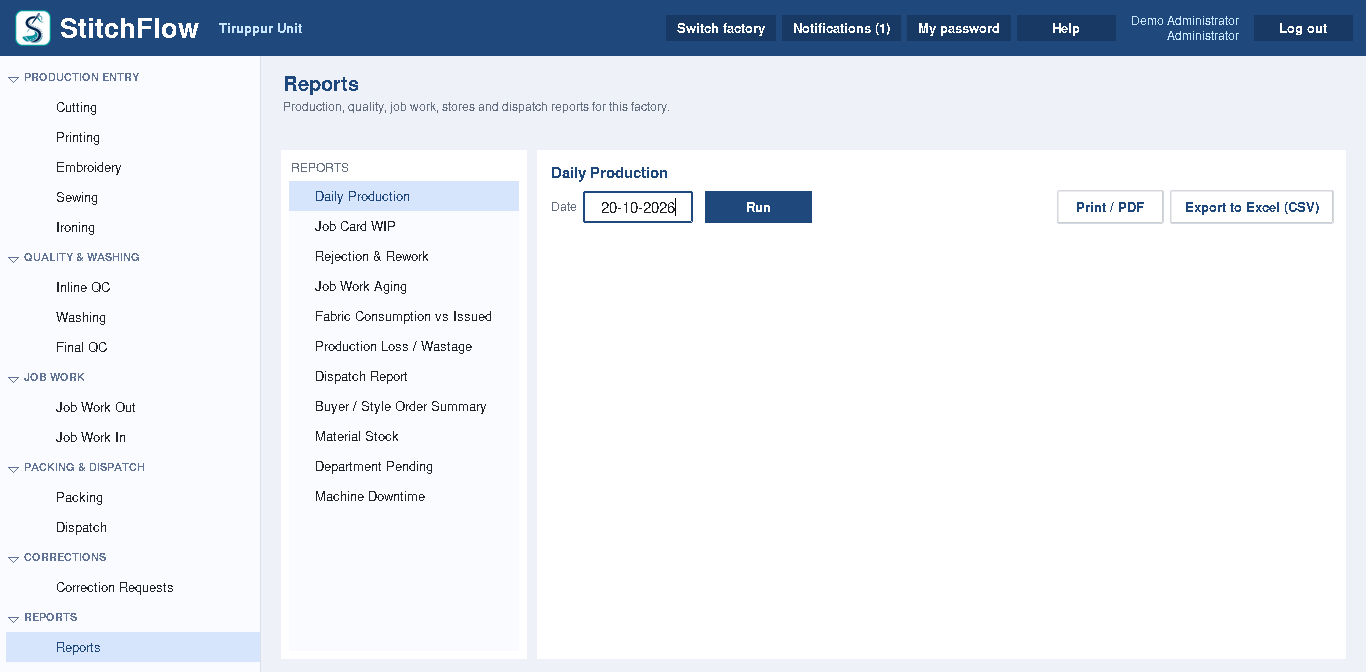
  • 11 ready reports — print, save as PDF or export to Excel (CSV)
  • Work in progress and pending work by department
  • Fabric used against fabric issued
  • Built-in help on every screen (F1)

One main PC, a PC for every section

The main PC keeps the factory's database. The PCs in stores, on the floor, in QC and in packing connect to it over your factory's own network, so every entry is on every PC straight away.

  • Each section can enter its own work, or one office PC can enter it for them
  • Users see only the screens their role allows
  • One company can run several factories on the same site network
  • Document numbers follow your financial year

For garment manufacturers — and everyone who runs the order

Garment and apparel factories, from a single unit to several units on one site.

Owners & management

See orders due and overdue, the rejection rate and the production calendar on the dashboard. Approve plans, job cards and dispatches.

Merchandising & planning

Record samples, buyer orders and styles, plan production and issue job cards — then follow each order to the end.

Stores

Receive fabric and accessories, check incoming fabric, issue material to job cards and keep stock correct.

Floor supervisors

Enter cutting, sewing and other stages shift by shift, send work out to job workers and record machine downtime.

Quality control

Record inline and final checks, rejections with reasons and rework — so problems are seen early.

Packing & dispatch

Pack into cartons, print carton labels, prepare dispatches for approval and record delivery.

The journey of an order

Printing, embroidery, washing, ironing and outside job work fit in wherever your factory's route needs them.

  1. Buyer orderstyle, colours, sizes
  2. Planapproved for production
  3. Job cardwork for the floor
  4. Fabric issuefrom the stores
  5. Cutting & sewingstage by stage
  6. Quality checksinline and final
  7. Packingcartons and labels
  8. Dispatchapproved and delivered

Clear screens for every department

Pictures from StitchFlow with sample data. Dates are shown as DD-MM-YYYY.
Records you can trust

Built so that a busy shift, a wrong entry or a new version never costs you your records.

Quantities checked at every stage

A stage can never record more pieces than the stage before it, so production, QC, packing and dispatch always agree.

Corrections with approval

Saved production, stores and dispatch entries are not changed. A wrong entry is cancelled through a correction request that another person approves, and can then be entered again.

Users, roles & permissions

Decide screen by screen who can view, add or approve, and which factories each user can open.

Audit log & login history

See who did what and when, and who logged in from which PC.

Backup & restore

Back up the factory's database and restore it when needed, from inside StitchFlow.

PostgreSQL database

A proven database engine on your main PC, with separate secured access for the daily work.

Try it free, then choose what fits your factory

Contact SastiLab for a demo and a price for your factory.

1

60-day free trial

Every feature works during the trial, so your team can try StitchFlow with real orders before deciding.

2

Subscription or one-time licence

Choose a yearly subscription, or a one-time (perpetual) licence with an optional maintenance plan (AMC) for new versions.

3

Sized by PCs and factories

Editions differ in how many PCs can work at the same time and how many factories you run.

Editions
EditionPCs at the same timeFactories
Free trial (60 days)52
Standard31
Professional103
EnterpriseNo limitNo limit

If a trial or licence ends, StitchFlow becomes read-only: you can still view, print and back up, and your data is never deleted.

Download StitchFlow

One Windows installer for the main PC and every section PC — on a new main PC it also installs and prepares the database — and the Android app for your staff's phones.

60-day free trial

StitchFlow for Windows

StitchFlow and its database (PostgreSQL 11), for the main PC and every section PC.

File
StitchFlow-Setup.exe
Version
1.0.0 · 20 October 2026
Size
357 MB
Windows
64-bit Windows 7 SP1, Windows 10 or Windows 11
Check the file (SHA-256) 8aa96d8bffc4fff69e07c43df906f8285f7c6ef132241a3957d4c90b785be354
Android app · Free

StitchFlow Mobile

Production and quality entries from a phone on the factory floor, saved straight into StitchFlow on the main PC. Install it on every phone your staff will use.

File
StitchFlow-Mobile.apk
Version
1.0.0 · 19 October 2026
Size
21.1 MB
Android
Android 7.0 or newer
Permissions
Network only — no camera, files or location
Check the file (SHA-256) ab6c6316903c75a180117fb58adbceaa3c65c9140e8635c16311ff9eb159390a
Guides

Help & guides

Every screen has its own help: press F1 or click Help. 46 topics in simple English, with pictures, from first login to backups and common problems.

User Guide
PDF · 47 pages · 1.5 MB · every screen, step by step
Installation & Setup Guide
PDF · 17 pages · 0.3 MB · main PC, section PCs, licence, backups
QR code: opens sastilab.com/stitchflow/#download on your phone

Scan with your phone

Open the phone's camera and point it at this code. This download page opens on the phone — tap Download Android App to install StitchFlow Mobile, or read the guides.

sastilab.com/stitchflow/#download

Windows may ask you to confirm. The installer is not yet digitally signed, so Windows shows a caution before it runs: on Windows 10 / 11 click More info → Run anyway; on Windows 7 click Yes. Not sure? Compare the file's SHA-256 above, or email support@sastilab.com before installing.

Installing StitchFlow Mobile on a phone

  1. Open this page on the phone and tap Download Android App. If Chrome says the file might be harmful, tap Download anyway.
  2. Open the downloaded file and tap Install. If Android asks, allow installing apps from this source. If Google Play Protect shows a message, choose to install anyway — the app comes directly from SastiLab.
  3. Connect the phone to the factory Wi-Fi and open StitchFlow Mobile. It finds the main PC; check that the security code matches the one on the main PC, then ask for access.
  4. An administrator approves the phone on the main PC (Settings & Backup → Mobile phones). Then log in with your own StitchFlow user name and password.

What you need, and how StitchFlow is set up

So you can plan your PCs and network before installation.

What you need

  • Windows 64-bit Windows 10 or 11, or Windows 7 SP1 (with update KB2533623)
  • Database PostgreSQL 11 — included; the installer sets it up on the main PC
  • Screen 1366 × 768 or larger is best
  • Windows account administrator rights, to install and set up
  • Network all PCs on the same factory network (cable or Wi-Fi)
  • Section PCs a fixed IP address for each (or a reservation in the router)
  • Main PC switched on whenever other PCs work
  • Printing a PDF viewer; reports and labels print from it
  • Internet not needed for daily work

Supported network setup

StitchFlow works on one site's own network, around one main PC.

  • One PC StitchFlow and its database on a single computer.
  • Main PC + section PCs stores, floor, QC and packing PCs on the same factory network.
  • Several factories, one site several units in one database, when all their PCs are on that same network.
  • Factories at different locations working together over the internet or a VPN is not supported.
  • Working without the main PC section PCs need the main PC; there is no offline mode.

Fabric and accessory stock is one shared stock for the whole company — it is not kept per factory.

Setup, step by step

How installation works. Every step is explained in the Installation & Setup Guide (PDF). We recommend contacting SastiLab before you start.

Step 1 · Required

Main PC

The computer that keeps the factory's database and stays on during work.

  1. Download the StitchFlow installer and run it as administrator.
  2. Click Next and Install. The installer also installs and prepares the database — about 5 minutes.
  3. Start StitchFlow. It creates the tables and the first administrator login.
  4. Set up your company, factory, users and roles. The 60-day trial has started.
Step 2 · If you use more PCs

Section PCs

Each one must be on the same factory network as the main PC.

  1. On the main PC, authorise each section PC by name and fixed IP address (Settings & Backup → This PC & network).
  2. Run the database security step once on the main PC, so only authorised PCs can connect.
  3. Add a section PC on the main PC and save the file it makes onto a USB drive. The file contains no password.
  4. Install StitchFlow on the section PC with that file next to the installer.
  5. An administrator types the database password once on the section PC. Then staff log in with their own users.

StitchFlow Mobile for Android

Floor and quality staff can save their entries on an Android phone, right where the work is done — with the same rules and rights as on a PC.

What staff can do on a phone

  • Cutting, printing, embroidery, sewing and ironing entries
  • Inline and final quality checks, with rework and rejections
  • Each person logs in with their own StitchFlow user name and password
  • Only the screens their role allows; every entry is saved in their name
  • An entry is never saved twice, even if the Wi-Fi drops while saving
Phones
Android 7.0 or newer
Network
The factory Wi-Fi, with the main PC switched on
Licence
Phones do not count as PCs

Safe by design

  1. Phones talk only to the mobile server on your main PC — never directly to the database.
  2. The connection is encrypted (HTTPS), and each phone checks the main PC's security code.
  3. A new phone must be authorised by an administrator on the main PC before anyone can use it.
  4. A lost phone is revoked with one click — it is refused at once.

Common questions

Which computers does StitchFlow run on?

StitchFlow is a Windows desktop application, designed for 64-bit Windows 7 SP1, Windows 10 and Windows 11. One PC is the main PC with the database; other PCs connect to it over the factory network. See what you need.

Do we need the internet for daily work?

No. Daily work runs on your factory's own network, and the data stays on your main PC. There is no cloud account.

We have more than one factory. Can StitchFlow handle that?

Yes, when the factories are on the same site network. One company can run several factories in StitchFlow; users choose their factory when they log in and can be given access to one or more factories. The number of factories depends on the edition.

Our factories are in different towns. Can they share one StitchFlow?

Not at present. All PCs must be on the same factory network as the main PC; working together across locations over the internet or a VPN is not supported. Fabric and accessory stock is also one shared stock, not kept per factory.

What happens when someone makes a wrong entry?

Saved production, stores and dispatch entries are never edited. The user raises a correction request with a reason; once another person approves it, the wrong entry is cancelled and can be entered again. The audit log keeps the full story.

Can we send work to outside job workers?

Yes. Job Work Out and Job Work In record what goes out and comes back, with challans, and the Job Work Aging report shows what is still outside and for how long.

Which reports are included?

Daily Production, Job Card WIP, Rejection & Rework, Job Work Aging, Fabric Consumption vs Issued, Production Loss / Wastage, Dispatch, Buyer / Style Order Summary, Material Stock, Department Pending and Machine Downtime. Each can be printed, saved as PDF or exported to Excel (CSV).

Is there help for new staff?

Yes. Press F1 on any screen to open the help for that screen. The built-in help has 46 topics in simple English, with pictures from the application.

How do we install StitchFlow?

Download the installer and run it on the main PC first: it also installs and prepares the database. Then install it on each section PC with the file the main PC makes. The Installation & Setup Guide explains every step. Prefer a demo first? Email support@sastilab.com.

See your orders move from PO to dispatch

Tell us about your factory and we will show you StitchFlow working for the way you produce.